
Last verified on July 31, 2026
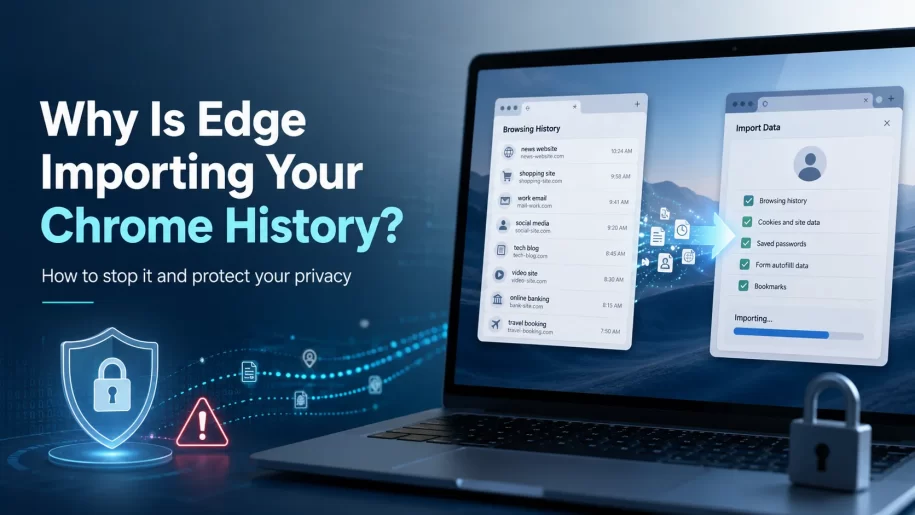
Some Windows users are opening Microsoft Edge and discovering that their Chrome browsing history, bookmarks, tabs, or other information has appeared inside the browser.
This can feel alarming, especially if you never intended to move from Chrome to Edge. In most cases, it does not mean that Edge hacked your Chrome account. It usually means that a browser import option was enabled during setup, through an Edge prompt, or in the browser settings.
Microsoft Edge includes a feature that can import information from other browsers. On Windows, this feature can also be configured to offer an import whenever Edge launches. Microsoft says users can activate it through a prompt or from the Edge settings page when an organization has not already controlled it through policy.
In this guide, we will explain why Edge may be copying your Chrome history, what information could be imported, why it creates a privacy concern, and how to turn it off.
Why Is Edge Importing Data From Chrome?
Microsoft designed the browser import feature to make switching browsers easier.
Someone moving from Chrome to Edge may want immediate access to bookmarks, saved passwords, browsing history, open tabs, and familiar settings. Importing that information removes the need to configure a new browser manually.
The problem is that some users do not realize the option has been enabled. They may accept an import prompt without understanding its full scope, or the setting may remain active after the initial setup.
Edge also supports an option called Import browsing data at each browser launch. When this is enabled, Edge may continue bringing information over from Chrome instead of treating the import as a one time event.
What Information Could Edge Import?
The exact information available for import depends on your browser version, Edge profile, device settings, and which options were selected.
Microsoft documentation shows that supported Chrome imports may include favorites, saved passwords, addresses, payment information, browsing history, browser settings, pinned tabs, open tabs, extensions, and cookies.
That means the import may involve much more than a simple list of bookmarks.
Your browsing history can contain the addresses of websites you visited, along with the date and time of each visit. Microsoft also identifies passwords, form information, credit card details, shipping addresses, cookies, and other site data as information that can be stored within Edge.
Not every import will include all of these categories. You should still review the settings rather than assuming that only your history was copied.
Why This Is a Privacy Issue
Browser history can reveal a detailed picture of someone’s personal and professional life.
It may show searches related to health concerns, financial problems, legal questions, employment, private communications, religious interests, travel plans, purchases, or personal relationships.
Bookmarks and open tabs can reveal current projects and priorities. Saved addresses and form data may contain contact details. Saved passwords may provide access to important accounts when combined with access to the device and browser profile.
The concern is not simply that information exists in Chrome. The concern is that another copy may now exist in Edge, where the user did not expect to find it.
Anyone who can access your Windows session or Edge profile may be able to see some of this imported information. Copies may also remain after the original Chrome data has been deleted.
Does This Mean Microsoft Uploaded Your Chrome History?
Not necessarily.
Importing information into Edge does not automatically prove that Microsoft received or uploaded every item. Some information may remain stored locally on the computer.
However, Edge can store browsing history on one device, across synced devices, and in the cloud, depending on your account and sync settings. Microsoft recommends checking whether sync is enabled before clearing data because synced items may be removed across every connected device.
Edge also has a separate privacy setting that allows Microsoft to use Edge browsing activity for personalized advertising and experiences. Microsoft says this activity can include browsing history, favorites, browser usage, web content, and device data when the user has provided permission.
For that reason, stopping the Chrome import should be only one part of your review. You should also check Edge sync and personalization settings.
How to Stop Edge From Importing Chrome Data
As of July 31, 2026, you can review the import setting from the Edge profile settings.
Open Microsoft Edge and paste the following address into the address bar:
edge://settings/profiles/importBrowsingData/importOnLaunch
Look for an option named Import browser data from Google Chrome on each launch or Import browsing data at each browser launch.
Turn the option off.
If Edge displays an Edit preferences option, open it and disable every category that you do not want Edge to import. This may include browsing history, open tabs, favorites, saved passwords, payment information, addresses, and other browser data.
Close Edge completely, then open it again to confirm that the setting remains disabled.
If the direct address does not open the expected page, use the manual path:
- Open Microsoft Edge.
- Select the three dot menu in the upper right corner.
- Select Settings.
- Select Profiles.
- Select Import browser data.
- Open Import browsing data at each browser launch.
- Turn the feature off.
Microsoft’s standard import controls are located under Settings, Profiles, and Import browser data.
What If the Setting Is Managed?
Some Edge settings may be controlled by a workplace, school, security program, or Windows administrator.
Paste this address into Edge:
edge://policy
Look for a policy named:
ImportOnEachLaunch
Microsoft describes this policy as the control that allows importing data from other browsers on each Edge launch. It can be applied as a mandatory Windows policy and requires a browser restart after changes.
If the setting says it is managed by your organization, you may not be able to change it from the normal Edge settings page.
On a work or school computer, contact the administrator responsible for the device.
On a personal computer, a managed setting may have been created by security software, a previous workplace configuration, or a Windows policy change. Review recently installed management or security software before modifying system policies.
How to Delete Chrome History Already Imported Into Edge
Turning off future imports does not automatically remove information that Edge has already copied.
To clear the imported history, paste this address into Edge:
edge://settings/clearBrowserData
Choose All time as the time range.
Select Browsing history, then select Clear now.
Be careful when choosing additional categories. Selecting Passwords will remove passwords saved in Edge. Selecting Autofill form data may remove addresses, contact details, and payment form information.
Microsoft also notes that clearing local data and clearing synced data can produce different results. Turn off Edge sync first when you only want to remove information from the current device.
Review Your Edge Sync Settings
After clearing the imported information, check whether Edge has been syncing data to other devices.
Paste this address into Edge:
edge://settings/profiles/sync
Review the available categories.
Turn off History, Open tabs, Passwords, Personal information, and any other category you do not want shared between devices.
You can also turn off Edge sync completely.
Remember that disabling sync stops future synchronization. It may not remove information already stored on another connected device.
Review Microsoft Personalization Settings
Edge includes a separate setting for using browsing activity to personalize Microsoft services.
Open Edge and go to Settings, Privacy, search, and services, then Privacy.
Look for the setting that allows Microsoft to save browsing activity, including history, usage, favorites, web content, and other browsing data, for personalized ads, search, shopping, news, and other experiences.
Turn it off if you do not want your Edge browsing activity used for that purpose.
Microsoft says turning this setting off stops future collection and use for personalization from that point forward. Local browser history may still remain on the device until you delete it separately.
How to Confirm the Import Has Stopped
After changing the settings, use Chrome normally and visit one or two harmless test pages.
Close Edge completely, then reopen it.
Open the Edge history page by entering:
edge://history/all
Check whether the new Chrome visits have appeared.
If they have not appeared, the recurring import has likely stopped.
If they continue appearing, check the Edge policy page, confirm that you changed the setting for the correct Edge profile, and verify that you do not have multiple Edge profiles using different import preferences.
Final Thoughts
Microsoft Edge importing Chrome information is usually presented as a convenience feature, but convenience should not replace informed choice.
Browsing history, passwords, addresses, tabs, cookies, bookmarks, and payment information can all be sensitive. Creating an unexpected copy of that information increases the number of places where it must be protected, reviewed, and eventually deleted.
The best response is not panic. The best response is control.
Turn off recurring imports, remove information that was already copied, review Edge sync, and check the privacy settings connected to your Microsoft account.
Your browser should store the information you choose to give it, not information you did not realize it was collecting.
Helping Organizations Protect Their Digital Privacy
Strong cybersecurity begins with understanding where your information is stored and how it moves between applications.
A privacy focused browser setup, secure account configuration, and regular review of data sharing settings can help protect your organization, employees, customers, and personal information from unnecessary exposure.